How Do You Reset a Ford Explorer Screen?
Reset a Ford Explorer screen by holding the power/volume knob for about 10 seconds. If it stays blank or frozen after two tries, the next step is usually the battery-reset step or dealer diagnosis. A bad reset can leave you without navigation, camera views, and audio controls when you need them. This guide gives the safest reset order for 2020-2026 Explorers and notes the older Sync resets too.
What a screen reset can fix
A screen reset is the first fix for a frozen touch display, a lagging center screen, or a black display that still has audio in the background. It can clear a temporary SYNC glitch, but it will not repair a failed display, water damage, or a module fault. Keep the vehicle in Park, then start there.
On 2020-2026 Explorer models, the reset choice depends on whether the screen still responds. A menu reset generally only helps when the touchscreen still works. If the display is locked up or blank, use the button reboot first.
What you will see
- Frozen touch input with no response to taps
- Black screen with audio still playing
- Boot loop, where the screen keeps restarting
- Lag, delayed menu changes, or missing camera views
What you’ll need
- The SUV parked safely in Park
- The owner’s manual for your model year
- Time to wait for a full reboot before trying a deeper reset
- Access to Ford support or service information if the screen will not recover
- A stable 12V battery condition before any battery disconnect step
Can you reset it from the screen?
Yes, but only if the display still responds. Use the settings path for a soft reset or factory reset when the touchscreen works normally. If the screen is frozen, the menu path may be unusable, so a physical reboot is the better first step on Explorer SYNC systems.
Ford’s current Explorer line is listed as the 2026 Explorer, and Ford places Explorer within its SUV lineup. Ford also highlights connected features such as a Wi-Fi hotspot and voice assistance on its homepage, which is why a reset can affect pairing, personalization, and voice settings.
Menu reset path
- Turn the ignition on with the SUV in Park.
- Open Settings on the center display.
- Choose General or System, then look for Reset or Master Reset.
- Confirm only if you want to erase saved phone pairings, personalization, and stored preferences.
Explorer reset decision table
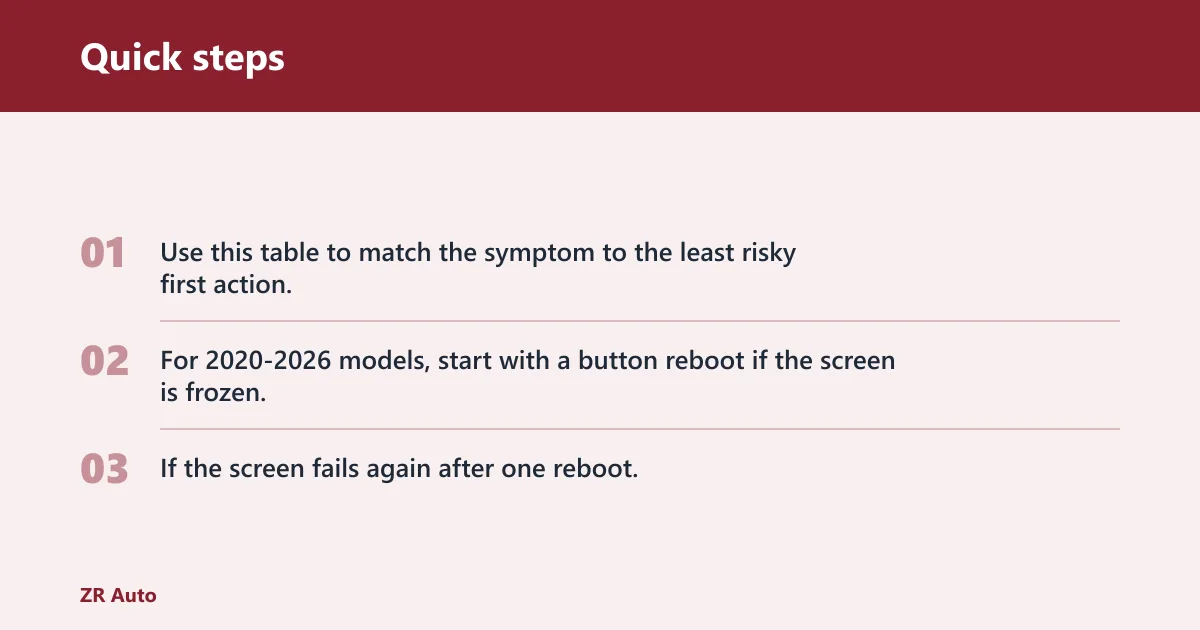
Use this table to match the symptom to the least risky first action. For 2020-2026 models, start with a button reboot if the screen is frozen, and use a menu reset only if the display still responds. If the screen fails again after one reboot, move down the list instead of repeating the same step all day.
| Symptom | Safest first action | Likely cause | What data may be lost | When to escalate |
|---|---|---|---|---|
| Frozen touch input | Hold the power/volume knob for about 10 seconds | Temporary SYNC hang or software glitch | Usually nothing; temporary screen state may clear | Escalate if the freeze returns after one reboot |
| Black screen, audio still works | Use the physical reboot, then cycle the ignition off and on | Display software fault or backlight issue | None from a soft reboot | Escalate if the display stays black after two tries |
| Boot loop | Try the button reboot once, then stop | Corrupted software or failing module | Pairings and settings only if a master reset is used | Escalate if the restart loop continues |
| Lag or delayed response | Use the reboot button sequence, then check for updates | Temporary software slowdown | Nothing on a soft reset | Escalate if lag returns after the vehicle is restarted |
| Screen reboots but camera or audio still misbehaves | Check settings, then note the fault for service | Separate camera, audio, or module issue | Could lose presets after a master reset | Escalate to dealer diagnosis if the screen itself is stable but the fault remains |
| Repeated black screen after a battery issue | Check battery condition before deeper resets | Low voltage or power interruption | Nothing from checking voltage; settings only if the battery is disconnected | Escalate if voltage is normal and the screen still fails |
How do you reset it with buttons?
Use the physical reboot when the touchscreen is frozen or blank. On many Explorer SYNC 3 and SYNC 4 systems, the common button reset is holding Seek Up and the Power/Volume knob together until the screen restarts. That is the right move when the menu cannot be used.
If the display is stuck on the Ford logo, a menu reset will not help if you cannot open the settings path. The button reboot gives the system a chance to recover before you move to a deeper reset.
Button reset steps
- Shift to Park and leave the SUV stationary.
- Turn the ignition off and wait about 30 seconds.
- Press and hold Seek Up and Power/Volume together for about 10 seconds.
- Release when the screen goes dark or restarts.
- Start the vehicle again and confirm the display loads normally.
Older Sync behavior
Older Explorer SYNC layouts can vary by year and trim, so the owner’s manual matters. A 2017 Explorer may use a different screen layout and menu path than a 2023 or 2025 model. The reset idea is the same, but the exact path is not identical across generations.
If that didn’t work, try this next
If the button reboot fails twice, move up one level only. A soft reboot is different from a master reset, and a master reset may erase phone pairings, saved addresses, and personalization. A battery disconnect is a last resort, not the default answer for every black screen.
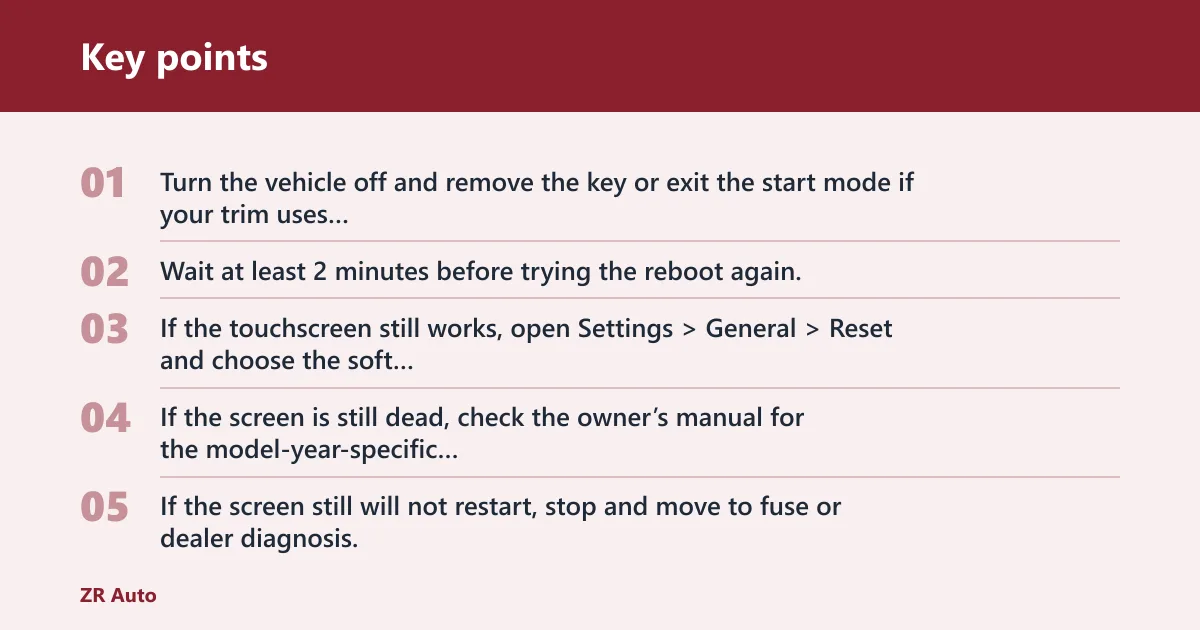
- Turn the vehicle off and remove the key or exit the start mode if your trim uses push-button start.
- Wait at least 2 minutes before trying the reboot again.
- If the touchscreen still works, open Settings > General > Reset and choose the soft reset or master reset option your model offers.
- If the screen is still dead, check the owner’s manual for the model-year-specific procedure.
- If the screen still will not restart, stop and move to fuse or dealer diagnosis.
A 2024 Explorer with audio that still plays but no backup camera image may need more than a screen reboot. The display can come back while a camera fault remains, because the problem is not the touchscreen itself. That is the point where a reset stops being useful.
When should you stop troubleshooting?
Stop when the same fault returns after a clean reboot, when the screen stays black, or when the display works but the camera or audio does not. That pattern points away from a simple SYNC hang and toward a fuse, a module fault, low battery voltage, or software corruption that needs scanning.
Ford states that its owner experience includes mobile service options. That matters here because repeated reboot failures are not a casual nuisance; they can become a warranty or diagnostic issue if the screen is tied to vehicle functions.
Escalation ladder
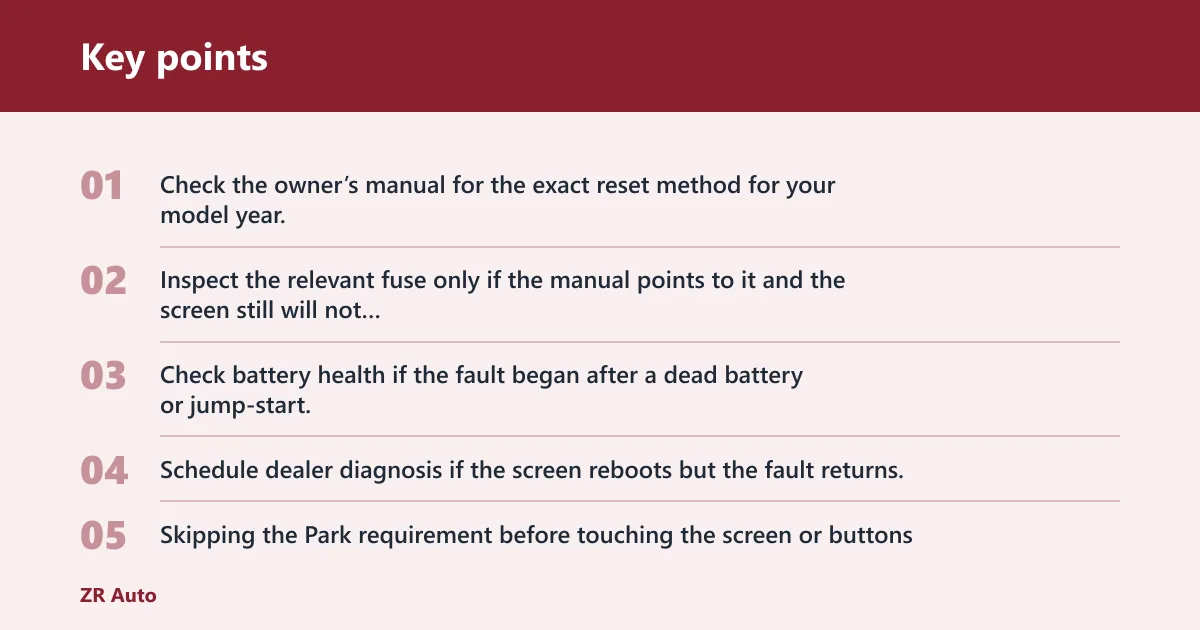
- Check the owner’s manual for the exact reset method for your model year.
- Inspect the relevant fuse only if the manual points to it and the screen still will not wake up.
- Check battery health if the fault began after a dead battery or jump-start.
- Schedule dealer diagnosis if the screen reboots but the fault returns, or if water exposure is part of the story.
Common mistakes
- Skipping the Park requirement before touching the screen or buttons
- Using the menu reset when the display is frozen and unreadable
- Jumping to a master reset before trying the soft reboot
- Disconnecting the 12V battery first, which can erase settings and still fail to fix hardware problems
- Ignoring low voltage, water exposure, or repeated black screens